
Build a Multi-Agent AI Data Analyst with Microsoft AutoGen and OpenAI
Introduction
Asking an LLM a question about your data usually means one of two bad options: paste the rows into the chat and hope the model does the arithmetic correctly, or write the analysis code yourself and lose the convenience of just asking. LLMs are unreliable calculators, and hand-written analysis defeats the point of a conversational assistant.
In this tutorial we build a CSV data analyst using Microsoft’s AutoGen framework and OpenAI. You upload a CSV and ask a question; a writer agent generates pandas code, an executor agent runs that code as a real subprocess against your actual file, and the two loop until the executed output answers the question. The numbers you get back are computed by real code, not guessed by the model.

What We Are Building
A two-agent AutoGen team behind a Streamlit chat interface. The workflow:
Upload a CSV file, which is saved into a sandboxed working directory
Ask a question about the data
Write: the pandas_writer agent turns the question into a pandas code block
Execute: the sandbox_runner agent runs that code as a subprocess and captures the printed output
Verify: the writer reads the real output; if it answers the question it summarizes and stops, otherwise it writes corrected code and the loop repeats
Tech Stack
Component | Tool |
Agent framework | Microsoft AutoGen (AgentChat API) |
Model | OpenAI gpt-4o-mini |
Code execution | LocalCommandLineCodeExecutor (real subprocess, confined working directory) |
Data handling | pandas |
UI | Streamlit |
Pricing
AutoGen itself is free and open-source. The only cost is the OpenAI API: gpt-4o-mini at $0.15 per million input tokens and $0.60 per million output tokens. A typical question takes one write turn and one verify turn, a few thousand tokens in total, costing a fraction of a cent. Every question is logged to stats.json with prompt tokens, completion tokens, generation time, and computed cost.
Project Structure
Create a file named requirements.txt in the project root:
autogen-agentchat       # AutoGen's high-level API: AssistantAgent, CodeExecutorAgent, teams
autogen-ext[openai]     # extensions package with the OpenAI model client and code executors
pandas                  # used by the generated analysis code and to read CSV column names
streamlit               # renders the upload and chat UI
python-dotenv           # loads OPENAI_API_KEY and other config from .env
autogen-agentchat provides the agents and the round-robin team, autogen-ext[openai] provides the OpenAI client and the local code executor, pandas powers the actual analysis, streamlit renders the interface, and python-dotenv loads configuration.
Create a file named .env in the project root:
OPENAI_API_KEY=your_openai_api_key_here     # your own OpenAI secret key, never commit this file
OPENAI_MODEL=gpt-4o-mini                    # model used by the writer agent
GPT_4O_MINI_INPUT_COST=0.00000015           # USD per input token, used to compute stats.json costs
GPT_4O_MINI_OUTPUT_COST=0.00000060          # USD per output token, used to compute stats.json costs
Every configurable value, the API key, model name, and per-token cost rates, lives in .env so nothing needs to change in code to adjust pricing or switch models.
The finished project looks like this:
autogen_data_analyst/
├── data_analyst.py     # both agents, the team, ask_analyst(), stats logging
├── analyst_ui.py        # Streamlit UI: CSV upload and chat interface
├── requirements.txt     # autogen-agentchat, autogen-ext[openai], pandas, streamlit, python-dotenv
├── .env                 # OPENAI_API_KEY, OPENAI_MODEL, cost rates
├── sample_sales.csv      # example dataset to try the app with
├── stats.json            # created on first run, accumulates token and cost data
└── runs/                 # sandbox working directory, holds dataset.csv and generated scripts
Install dependencies and run:
python -m venv venv               # create an isolated Python environment in ./venv
venv\Scripts\activate              # activate it so pip installs land inside venv, not system-wide
pip install -r requirements.txt   # install autogen-agentchat, autogen-ext[openai], pandas, streamlit, python-dotenv
Building the Agents
Everything for the agent side lives in a single file. We start with the imports, configuration, and the sandbox directory that the executor agent is confined to.
Create a file named data_analyst.py:
import asyncio                              # AutoGen's agent runtime is fully async
import json                                 # read and write stats.json
import os                                   # read OPENAI_MODEL and cost rates from the environment
import time                                 # measure wall-clock time for each ask_analyst() call
from datetime import datetime               # timestamp every stats record
from pathlib import Path                    # resolve project paths regardless of working directory

import pandas as pd                         # used only to peek at column names before building the prompt
from dotenv import load_dotenv              # load .env before any os.environ.get() call
from autogen_agentchat.agents import AssistantAgent, CodeExecutorAgent   # the two collaborating agents
from autogen_agentchat.teams import RoundRobinGroupChat                  # alternates turns between the two agents
from autogen_agentchat.conditions import TextMentionTermination, MaxMessageTermination  # stop conditions for the loop
from autogen_ext.models.openai import OpenAIChatCompletionClient         # OpenAI-backed model client for AutoGen
from autogen_ext.code_executors.local import LocalCommandLineCodeExecutor  # runs generated code as a real subprocess

load_dotenv()                               # must run before os.environ.get() reads OPENAI_MODEL

PROJECT_ROOT = Path(__file__).resolve().parent    # directory containing this file
STATS_FILE = PROJECT_ROOT / "stats.json"           # accumulates across every session, never overwritten
SANDBOX_DIR = PROJECT_ROOT / "runs"                # working directory the executor agent is confined to
SANDBOX_DIR.mkdir(exist_ok=True)                   # create it on first import if it does not already exist
DATASET_PATH = SANDBOX_DIR / "dataset.csv"         # fixed filename every generated script loads via pandas
The imports split into two groups: standard library modules for stats and timing, and the AutoGen packages that provide the agents, the team, the termination conditions, the OpenAI client, and the code executor. SANDBOX_DIR is the folder where all generated code runs and where the uploaded CSV is saved under the fixed name dataset.csv, so the writer agent always knows exactly what filename to load.
Next we define the metadata that gets attached to every OpenAI API call, and the per-token cost rates used to compute spend.
# ── OpenAI metadata (forwarded to every API call, visible in the OpenAI dashboard) ───
OPENAI_CALL_METADATA = {
    "dev_name":    "Ganesh",       # identifies who triggered the call, shown in OpenAI's usage dashboard
    "project":     "codex-test",   # groups usage under this project label
    "environment": "local",        # distinguishes local dev calls from staging or production
    "purpose":     "testing",      # flags these calls as non-production traffic
}

# ── Per-token cost rates (read from .env so they can be updated without code changes) ─
_INPUT_COST  = float(os.environ.get("GPT_4O_MINI_INPUT_COST",  0.00000015))  # $0.15 per million input tokens
_OUTPUT_COST = float(os.environ.get("GPT_4O_MINI_OUTPUT_COST", 0.00000060)) # $0.60 per million output tokens

MODEL = os.environ.get("OPENAI_MODEL", "gpt-4o-mini")  # model for both collaborating agents

DONE_TOKEN = "ANALYSIS_COMPLETE"            # marker the writer prints once the executor's output answers the question
OPENAI_CALL_METADATA is a plain dictionary that OpenAI attaches to usage records in its dashboard, useful for tracking which project or environment generated a given call. DONE_TOKEN is the agreed signal between the writer agent and the termination condition: when the writer is satisfied that the executed output answers the question, it prints this exact token and the loop stops.
Now the function the UI calls when a CSV is uploaded.
def load_dataset(csv_bytes: bytes) -> list[str]:          # called by the UI whenever a new CSV is uploaded
    """Save the uploaded CSV into the sandbox and return its column names."""
    DATASET_PATH.write_bytes(csv_bytes)                     # overwrite dataset.csv with the newly uploaded file
    frame = pd.read_csv(DATASET_PATH)                       # peek at the file only to list its columns
    return list(frame.columns)                              # column names are shown to the writer agent in the prompt
load_dataset writes the raw uploaded bytes to runs/dataset.csv and reads the file once, purely to extract its column names. The column names are the only detail about the dataset the model ever sees; the actual rows never leave your machine as part of a prompt.
With configuration in place, we can build the two-agent team.
def _build_team() -> RoundRobinGroupChat:                 # fresh team per question so termination state never leaks between runs
    """Construct a fresh two-agent team for a single question."""
    model_client = OpenAIChatCompletionClient(              # wraps the OpenAI chat completions API for AutoGen
        model=MODEL,                                         # which model both agents use
        api_key=os.environ.get("OPENAI_API_KEY"),            # read explicitly rather than relying on implicit env lookup
        metadata=OPENAI_CALL_METADATA,                       # forwarded to every completion request this client makes
    )

    pandas_writer = AssistantAgent(                          # the agent that writes pandas code, never executes it
        name="pandas_writer",                                 # internal identifier, appears in AutoGen's message log
        model_client=model_client,                            # shared model client instance
        system_message=(
            "You are a senior data analyst. You are given the column names of a CSV file "
            "already saved at 'dataset.csv' in the current working directory, and a question "
            "about that data. Write a single Python code block that loads the CSV with pandas, "
            "computes the answer, and prints a clear, human-readable result. "
            "Output ONLY a fenced python code block, no explanation before or after it. "
            "After the sandbox_runner agent reports the executed output, read that output. "
            "If it correctly answers the question, reply with a one-sentence summary of the result "
            f"followed by the exact token {DONE_TOKEN}. "
            "If the code failed or the output does not answer the question, write a corrected "
            "code block instead."
        ),
    )

    sandbox_runner = CodeExecutorAgent(                      # the agent that executes code, never writes it
        name="sandbox_runner",                                 # internal identifier, appears in AutoGen's message log
        code_executor=LocalCommandLineCodeExecutor(work_dir=str(SANDBOX_DIR)),  # runs code as a real subprocess, confined to runs/
    )

    stop_condition = TextMentionTermination(DONE_TOKEN) | MaxMessageTermination(8)  # stop on success or after 8 turns as a safety cap

    return RoundRobinGroupChat(                              # alternates: writer proposes code, runner executes it, repeat
        [pandas_writer, sandbox_runner],
        termination_condition=stop_condition,
    )
This is the heart of the project. pandas_writer is an AssistantAgent whose system message forces a strict contract: output only a runnable code block, then judge the executed result on the next turn. sandbox_runner is a CodeExecutorAgent with no model of its own for reasoning; it extracts the code block from the previous message and runs it as a real subprocess inside runs/.
The two conditions are combined with |, meaning the loop stops when either fires: the writer prints ANALYSIS_COMPLETE, or eight messages have passed, which prevents an infinite write-fail-rewrite loop from burning tokens. RoundRobinGroupChat simply alternates turns between the two agents in order.
Stats Tracking
Every question should leave a permanent record of what it cost, how long it took, and how many tokens it used. This function handles writing that record to stats.json.
def _write_stats(record: dict) -> None:                  # appends one interaction record and recomputes lifetime totals
    try:                                                   # guard against a missing or corrupted stats.json
        # load whatever is already on disk; start with an empty structure if stats.json does not exist yet
        existing = json.loads(STATS_FILE.read_text(encoding="utf-8")) if STATS_FILE.exists() else {"summary": {}, "interactions": []}
    except (json.JSONDecodeError, OSError):
        existing = {"summary": {}, "interactions": []}   # corrupt or unreadable file: start fresh rather than crash

    existing["interactions"].append(record)               # accumulate: never overwrite, always append the new record
    interactions = existing["interactions"]               # local alias, avoids repeated dict lookups below
    existing["summary"] = {
        "timestamp":                datetime.now().isoformat(),                                            # when this summary was last recomputed
        "total_interactions":       len(interactions),                                                      # lifetime count of every ask_analyst() call
        "total_prompt_tokens":      sum(i.get("prompt_tokens", 0) for i in interactions),                   # sum of input tokens across all calls
        "total_completion_tokens":  sum(i.get("completion_tokens", 0) for i in interactions),               # sum of output tokens across all calls
        "total_tokens":             sum(i.get("total_tokens", 0) for i in interactions),                    # combined input and output tokens
        "total_generation_seconds": round(sum(i.get("generation_seconds", 0) for i in interactions), 3),    # cumulative wall-clock time spent generating
        "total_input_cost":         round(sum(i.get("input_cost", 0) for i in interactions), 6),            # cumulative USD cost of input tokens
        "total_output_cost":        round(sum(i.get("output_cost", 0) for i in interactions), 6),           # cumulative USD cost of output tokens
        "total_cost":               round(sum(i.get("total_cost", 0) for i in interactions), 6),            # lifetime cost across every interaction
    }
    STATS_FILE.write_text(json.dumps(existing, indent=2, ensure_ascii=False), encoding="utf-8")   # atomic overwrite of the whole file
The function first reads whatever already exists in stats.json, falling back to an empty structure if the file is missing or corrupt. It appends the new record to the interactions list, then recomputes the entire summary block from scratch by summing across every interaction ever recorded, so the summary always reflects true lifetime totals rather than an incrementally-updated (and potentially drifting) counter.
Running the Team
The async core drives the round-robin loop for one question, collecting token usage and the final answer along the way.
async def _run_team(question: str, columns: list[str]) -> tuple[str, int, int]:  # the async core of every question
    """Run the writer/executor loop for one question, return the final answer and token counts."""
    team = _build_team()                                     # fresh agents and fresh termination state per question
    task = (                                                  # the opening message that kicks off the round-robin loop
        f"CSV columns: {columns}\n"
        f"Question: {question}\n"
        "Write pandas code that loads dataset.csv and answers this question."
    )

    prompt_tokens = 0                                        # accumulated across every message that carries usage info
    completion_tokens = 0                                    # accumulated across every message that carries usage info
    final_text = ""                                          # the last meaningful message, returned to the UI

    async for message in team.run_stream(task=task):          # stream messages as each agent takes its turn
        usage = getattr(message, "models_usage", None)        # only AssistantAgent messages carry real token usage
        if usage:                                              # executor turns and system events have no usage info
            prompt_tokens += getattr(usage, "prompt_tokens", 0) or 0        # add this turn's input tokens to the running total
            completion_tokens += getattr(usage, "completion_tokens", 0) or 0  # add this turn's output tokens to the running total
        content = getattr(message, "content", None)            # plain text content of this turn, if any
        if isinstance(content, str) and content.strip():       # skip non-text events and empty messages
            final_text = content                               # keep overwriting; the last message wins

    return final_text, prompt_tokens, completion_tokens        # hand everything back to the synchronous wrapper
team.run_stream yields every message as it is produced: the writer’s code block, the executor’s captured output, the writer’s verdict, and so on. Each AssistantAgent message carries a models_usage object with real token counts from the OpenAI response, which we accumulate across all turns so the cost figure covers the entire loop, not just the first call. final_text keeps being overwritten as messages stream past, so when the loop terminates it holds the writer’s closing summary.
Finally, the synchronous wrapper the UI calls: it guards against a missing dataset, runs the team, computes cost, and logs everything before returning the reply.
def ask_analyst(question: str) -> str:                    # public function the Streamlit UI calls for every question
    """Synchronous entry point the Streamlit UI calls for every question."""
    if not DATASET_PATH.exists():                          # no CSV has been uploaded yet this session
        return "Please upload a CSV file first."             # guard: no dataset means nothing for pandas_writer to load

    frame = pd.read_csv(DATASET_PATH)                        # re-read to get current column names for the prompt
    columns = list(frame.columns)                            # the only dataset detail the model ever sees

    start = time.monotonic()                                 # start the clock before the agent loop begins
    final_text, prompt_tokens, completion_tokens = asyncio.run(_run_team(question, columns))  # drive the async team synchronously
    elapsed = time.monotonic() - start                       # total wall-clock seconds the whole loop took

    total_tokens = prompt_tokens + completion_tokens          # combined tokens across every agent turn
    input_cost  = round(prompt_tokens * _INPUT_COST, 7)      # USD cost of the input tokens for this call
    output_cost = round(completion_tokens * _OUTPUT_COST, 7)  # USD cost of the output tokens for this call

    _write_stats({                                             # append one record describing this exact interaction
        "timestamp":          datetime.now().isoformat(),      # when this interaction happened
        "model":              MODEL,                           # which model produced the response
        "prompt":             question,                        # the user's raw question
        "response":           final_text[:2000],                # first 2000 chars, keeps stats.json readable
        "generation_seconds": round(elapsed, 3),                # how long this specific call took
        "prompt_tokens":      prompt_tokens,                    # input tokens used across the whole loop
        "completion_tokens":  completion_tokens,                # output tokens used across the whole loop
        "total_tokens":       total_tokens,                     # combined tokens used across the whole loop
        "input_cost":         input_cost,                       # USD cost of input tokens for this call
        "output_cost":        output_cost,                      # USD cost of output tokens for this call
        "total_cost":         round(input_cost + output_cost, 7),  # combined USD cost for this call
    })

    return final_text.replace(DONE_TOKEN, "").strip()         # strip the internal marker before showing the reply
asyncio.run bridges Streamlit’s synchronous world and AutoGen’s async runtime, driving the whole loop to completion in one call. The final line strips the internal ANALYSIS_COMPLETE marker before the answer reaches the UI, since that token is a protocol detail between the agents, not part of the answer.
The Streamlit UI
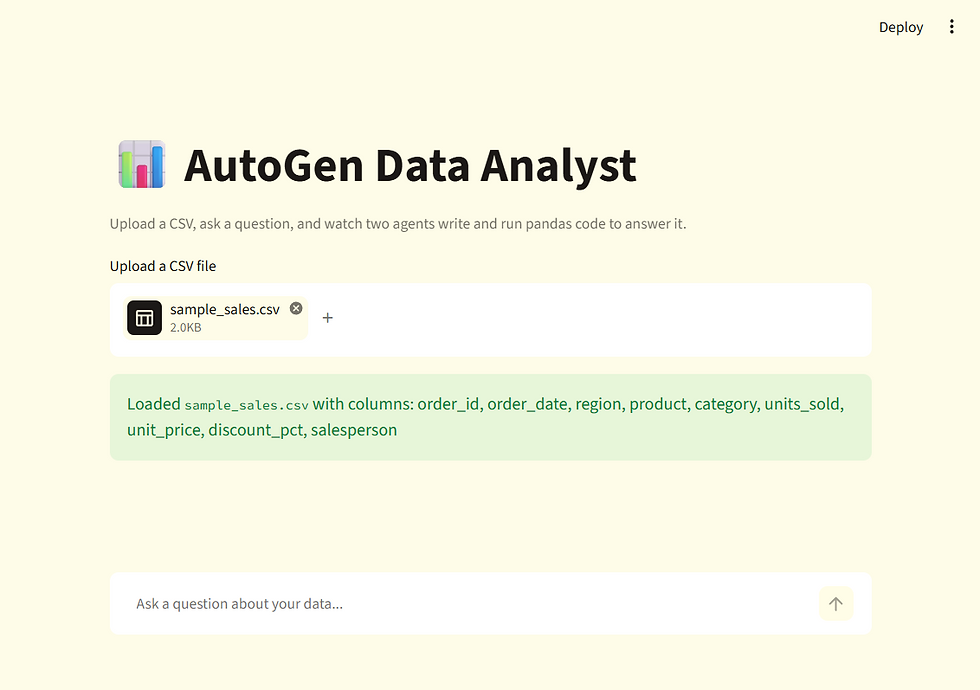
The UI has two parts: a file uploader that saves the CSV into the sandbox, and a chat interface that sends each question through ask_analyst.
Create a file named analyst_ui.py:
import streamlit as st                       # the entire visual layer
from dotenv import load_dotenv              # load .env so OPENAI_API_KEY is available
from data_analyst import ask_analyst, load_dataset  # the two functions the UI needs

load_dotenv()                               # must run before any import that reads OPENAI_API_KEY

st.set_page_config(page_title="Data Analyst", page_icon="📊", layout="centered")  # browser tab title and icon

# override the hardcoded red user avatar color that Streamlit applies by default
st.markdown("""
<style>
[data-testid="stChatMessageAvatarUser"] {
    background-color: #2563EB !important;
}
</style>
""", unsafe_allow_html=True)                # inject raw CSS, unsafe_allow_html is required for <style> to take effect

st.title("📊 AutoGen Data Analyst")                                                # large heading at the top of the page
st.caption("Upload a CSV, ask a question, and two agents will analyze the data to answer it.")

# ── Dataset upload ───────────────────────────────────────────────────────────
uploaded_file = st.file_uploader("Upload a CSV file", type=["csv"])   # file picker restricted to .csv

if uploaded_file is not None:                             # runs every time a new file is selected
    if "loaded_filename" not in st.session_state or st.session_state.loaded_filename != uploaded_file.name:  # only re-save when the file actually changed
        columns = load_dataset(uploaded_file.getvalue())   # save into the sandbox and get back column names
        st.session_state.loaded_filename = uploaded_file.name  # remember which file is currently loaded
        st.session_state.columns = columns                 # cache columns for display below
    st.success(f"Loaded `{st.session_state.loaded_filename}` with columns: {', '.join(st.session_state.columns)}")  # green confirmation banner

# ── Chat history ─────────────────────────────────────────────────────────────
if "messages" not in st.session_state:                    # runs only once per browser session, on first load
    st.session_state.messages = []          # conversation history for display only

for msg in st.session_state.messages:                     # redraw every past message on each Streamlit rerun
    with st.chat_message(msg["role"]):                    # "user" or "assistant" bubble styling, chosen automatically
        st.markdown(msg["content"])                       # render the stored message text as markdown

# ── Input ─────────────────────────────────────────────────────────────────────
if prompt := st.chat_input("Ask a question about your data..."):  # blocks until the user submits text
    st.session_state.messages.append({"role": "user", "content": prompt})   # record the user's message for display
    with st.chat_message("user"):                         # render the user's own bubble immediately
        st.markdown(prompt)                               # show the question text inside the bubble

    with st.chat_message("assistant"):                    # render the agents' combined reply in an assistant-styled bubble
        with st.spinner("Analyzing the data..."):       # shows a spinning indicator while the agent loop runs
            reply = ask_analyst(prompt)                     # call the coder/executor loop with the user's question
        st.markdown(reply)                                 # render the final text reply as markdown
    st.session_state.messages.append({"role": "assistant", "content": reply})  # record the reply for display on rerun
The upload handler compares the incoming filename against st.session_state.loaded_filename so the CSV is only re-saved when a genuinely new file is chosen, not on every Streamlit rerun. st.session_state.messages holds the visible conversation history for the current browser tab, while the actual analysis state lives entirely in data_analyst.py.
Each submitted question goes through ask_analyst, which blocks inside the spinner until the two agents finish their write-execute-verify loop.
The blue accent color and cream background come from a small Streamlit theme file placed alongside the app.
Create a file named .streamlit/config.toml:
[theme]
primaryColor = "#2563EB"              # buttons and interactive accents, replaces Streamlit's default red
backgroundColor = "#FEFCE8"           # main page background, warm cream instead of plain white
secondaryBackgroundColor = "#FFFFFF"  # input boxes, file uploader, and the sidebar
textColor = "#1C1917"                 # default text color across the whole app
Streamlit reads this file automatically on startup. primaryColor controls buttons and interactive accents, backgroundColor sets the main page background, secondaryBackgroundColor controls input boxes and the file uploader, and textColor sets the default text color.
Running the Application
streamlit run analyst_ui.pyOpen http://localhost:8501, upload a CSV, and start asking.
Output



stats.json file
{
  "summary": {
    "timestamp": "2026-07-17T11:36:05.131070",
    "total_interactions": 5,
    "total_prompt_tokens": 2859,
    "total_completion_tokens": 671,
    "total_tokens": 3530,
    "total_generation_seconds": 31.226,
    "total_input_cost": 0.000429,
    "total_output_cost": 0.000403,
    "total_cost": 0.000831
  },
  "interactions": [
    {
      "timestamp": "2026-07-17T11:34:24.350326",
      "model": "gpt-4o-mini",
      "prompt": "What is the total revenue (units_sold times unit_price) across all orders?",
      "response": "The total revenue across all orders is $37677.32. ANALYSIS_COMPLETE",
      "generation_seconds": 7.757,
      "prompt_tokens": 537,
      "completion_tokens": 92,
      "total_tokens": 629,
      "input_cost": 8.05e-05,
      "output_cost": 5.52e-05,
      "total_cost": 0.0001357
    },
    {
      "timestamp": "2026-07-17T11:35:11.287668",
      "model": "gpt-4o-mini",
      "prompt": "Which salesperson sold the most units in total?",
      "response": "The result shows that Vikram is the top salesperson, selling a total of 46 units. ANALYSIS_COMPLETE",
      "generation_seconds": 5.592,
      "prompt_tokens": 551,
      "completion_tokens": 123,
      "total_tokens": 674,
      "input_cost": 8.26e-05,
      "output_cost": 7.38e-05,
      "total_cost": 0.0001564
    },
  ....
}
Who Can Benefit
Analysts who want exact answers about a CSV without writing pandas code themselves.
Developers exploring Microsoft AutoGen’s writer-executor pattern, where generated code is verified by actually running it.
Students learning how multi-agent loops, termination conditions, and code executors fit together in AutoGen’s AgentChat API.
Teams prototyping a natural-language data interface before investing in a full analytics platform.
Engineers evaluating AutoGen against other agent frameworks who want real cost and latency numbers from a working deployment.
How Codersarts Can Help
If you want to take this further, Codersarts offers hands-on support at every stage.
For learners: Live 1-to-1 sessions with an AI engineer who can walk through AutoGen’s agent architecture, the round-robin team pattern, and how code executors safely bridge LLM output and real execution.
For teams: End-to-end development of data analysis agents, including support for larger datasets, chart generation, multi-file joins, and Docker-based execution sandboxes.
For enterprises: Architecture consulting for production agent deployments, including authentication, audit logging of generated code, and integrating agents with existing data warehouses.
Reach out at contact@codersarts.com or visit www.codersarts.com to get started.
Continue Your AI Learning Journey with Codersarts
If you enjoyed this article and would like to discover more about modern AI applications, production-ready LLM systems, and real-world RAG and MCP implementations, be sure to explore these other blogs from Codersarts:
Build a Cost-Efficient Writing Quality Checker with Tiered Model Routing and OpenAI
Build Your First A2A Agent: An Email Drafting Pipeline Using Python and OpenAI
Building an AI Interview Prep Agent with Qwen 3.7 Max and Streamlit
https://www.codersarts.com/post/building-an-ai-interview-prep-agent-with-qwen-3-7-max-and-streamlit
Academic Research Assistance and Literature Review Automation Using RAG
Clinical Decision Support Systems Using RAG: Intelligent Diagnostic Assistance for Healthcare
Financial Decision Making with RAG Powered Market Intelligence
https://www.codersarts.com/post/financial-decision-making-with-rag-powered-market-intelligence



Comments