
Learn MCP by Building a To-Do List Manager with Python and Claude Desktop
Introduction
Most AI assistants are good at answering questions but poor at remembering what you asked them to do yesterday. They have no persistent state across conversations — every session starts fresh. The Model Context Protocol (MCP) solves this by letting you build external tools that Claude (or any MCP-compatible host) can call during a conversation, with results persisted wherever you choose.
In this tutorial, we build an MCP To-Do List Manager — a local server that gives Claude eight tools for managing tasks: adding, listing, completing, updating, deleting, filtering, clearing, and summarising. Tasks are stored in a JSON file on disk, so they survive across sessions and Claude can act as your personal task manager.
The server is built with FastMCP, a high-level Python framework for MCP that lets you register tools using a simple decorator. No boilerplate, no manual protocol handling — just Python functions.

What We’re Building
Tool | What It Does |
add_task | Create a new task with title, description, priority, and due date |
list_tasks | List tasks filtered by status or priority |
get_task | Fetch full details of one task by ID |
complete_task | Mark a task as done |
update_task | Edit one or more fields of an existing task |
delete_task | Permanently remove a task |
clear_completed | Bulk-delete all completed tasks |
get_summary | Count tasks by status and priority, surface overdue items |
Each task stores: id, title, description, priority, due_date, status, created_at, and completed_at. Tasks persist in a local todos.json file and survive Claude Desktop restarts.
What is MCP?
Model Context Protocol (MCP) is an open standard that lets AI models communicate with external tools and data sources in a structured way. Rather than embedding tools directly into a model’s system prompt, MCP defines a lightweight server–client protocol:
The MCP server exposes tools (functions the model can call), resources (data it can read), and prompts
The MCP client (Claude Desktop, Claude Code, or any compatible host) discovers the server’s capabilities and calls tools on behalf of the user
Communication happens over stdio (local servers) or HTTP with SSE (remote servers)
The key benefit: your tools are decoupled from any specific AI product. A tool server you build for Claude Desktop also works with any other MCP-compatible client — no changes required.
What is FastMCP?
FastMCP is a high-level Python framework for building MCP servers. It handles the MCP protocol wire format, tool registration, input validation, and transport — you only write the business logic.
The pattern is:
from mcp.server.fastmcp import FastMCP

mcp = FastMCP("Server Name")

@mcp.tool()
def my_tool(param: str) -> str:
    return f"You passed: {param}"

mcp.run()
FastMCP reads the function’s type annotations and docstring to generate the tool’s JSON schema automatically. Claude sees the tool name, description, and parameter types — and calls it exactly like a Python function.
Tech Stack
Component | Tool |
MCP Framework | FastMCP (mcp[cli]) |
Persistence | JSON file on disk (todos.json) |
Date/Time | Python datetime (standard library) |
File Paths | Python pathlib (standard library) |
Host | Claude Desktop (via claude_desktop_config.json) |
No external API keys, no cloud dependencies. The entire server runs locally.
Project Structure
mcp_todo_manager/
├── server.py        # FastMCP server — all 8 tools in one file
├── todos.json       # Auto-created on first use — stores all tasks
├── requirements.txt # mcp[cli]
└── venv/            # Virtual environment
Setting Up
1. Create the Virtual Environment
cd mcp_todo_manager
python -m venv venv
venv\Scripts\activate      # Windows
# source venv/bin/activate  # Mac/Linux
2. Install Dependencies
pip install mcp[cli]
3. Register with Claude Desktop
{
  "mcpServers": {
    "todo-manager": {
      "command": "C:\\path\\to\\mcp_todo_manager\\venv\\Scripts\\python.exe",
      "args": ["C:\\path\\to\\mcp_todo_manager\\server.py"]
    }
  }
}
Building the Server — server.py
The entire server lives in a single file. We’ll walk through every part.
Imports and Storage Setup
import json                   # reads and writes todos.json — the only persistence layer
import os                     # available if you later need environment variables (e.g. a custom data directory)
from datetime import datetime  # generates created_at / completed_at timestamps and compares against today for overdue detection
from pathlib import Path       # constructs the todos.json path relative to server.py — so the file always sits next to the server regardless of the working directory

from mcp.server.fastmcp import FastMCP  # FastMCP class — handles the MCP protocol, tool registration, and transport
BASE_DIR   = Path(__file__).parent   # absolute path to the directory containing server.py — used to anchor todos.json next to the server
TODOS_FILE = BASE_DIR / "todos.json" # full path to the task store — created automatically on first write
Path(__file__).parent is a reliable way to get the server’s own directory regardless of where the process is launched from. This ensures todos.json always sits next to server.py, not in whatever the current working directory happens to be.
Storage Helpers
Three small helper functions handle all disk I/O. Every tool calls these — they never touch TODOS_FILE directly.
_load() reads todos.json from disk and returns the full store as a Python dict. If the file does not exist yet (first run) or is corrupted, it returns a safe default so the server never crashes on startup.
def _load() -> dict:
    """Load the todos store from disk. Returns {"tasks": [], "next_id": 1} if missing."""
    if not TODOS_FILE.exists():           # first run — the file has not been created yet; return the empty initial state
        return {"tasks": [], "next_id": 1}  # next_id starts at 1 and increments with each new task — IDs are never reused
    try:
        return json.loads(TODOS_FILE.read_text(encoding="utf-8"))  # read the file and parse JSON — read_text handles opening and closing the file
    except json.JSONDecodeError:
        return {"tasks": [], "next_id": 1}  # if the file is corrupted, start fresh rather than crashing the server
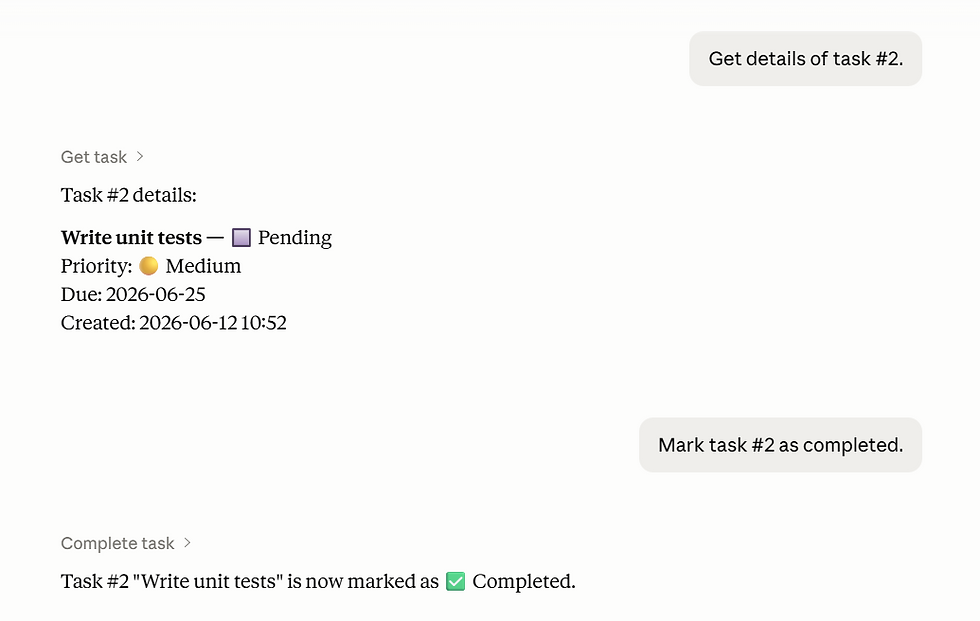
_fmt() converts a single task dict into a clean, readable multi-line string. Every tool that returns task data (add, get, complete, update) calls this so the output format is always consistent. Fields like description, due date, and completion time are only shown when they have a value — empty fields are skipped to avoid visual clutter.
def _fmt(task: dict) -> str:
    """Format a single task as a readable string."""
    due    = f"  Due      : {task['due_date']}\n" if task.get("due_date") else ""          # only show the due date line if one was set — avoids clutter for tasks without a deadline
    desc   = f"  Desc     : {task['description']}\n" if task.get("description") else ""    # only show description if non-empty — add_task allows skipping it
    done   = f"  Done at  : {task['completed_at']}\n" if task.get("completed_at") else ""  # only show completion time for completed tasks
    status = "✅ Completed" if task["status"] == "completed" else "🔲 Pending"              # emoji status indicator — immediately readable at a glance
    prio_icon = {"high": "🔴", "medium": "🟡", "low": "🟢"}.get(task["priority"], "⚪")    # colour-coded priority dot — red/yellow/green traffic-light pattern
    return (
        f"[#{task['id']}] {task['title']} — {status}\n"  # first line: ID, title, and status — the most important fields
        f"  Priority : {prio_icon} {task['priority'].title()}\n"  # .title() capitalises first letter — "high" becomes "High"
        f"{desc}"   # empty string if no description — no extra blank line
        f"{due}"    # empty string if no due date
        f"  Created  : {task['created_at']}\n"  # creation timestamp — always present
        f"{done}"   # empty string if not yet completed
    )
MCP Server Instance
mcp = FastMCP("To-Do List Manager") # creates the MCP server; the string is the server's display name — shown in Claude Desktop's tools panel
This one line creates the server. Every tool registered with @mcp.tool() after this becomes available to Claude Desktop once the server is running.
Tool 1 — add_task
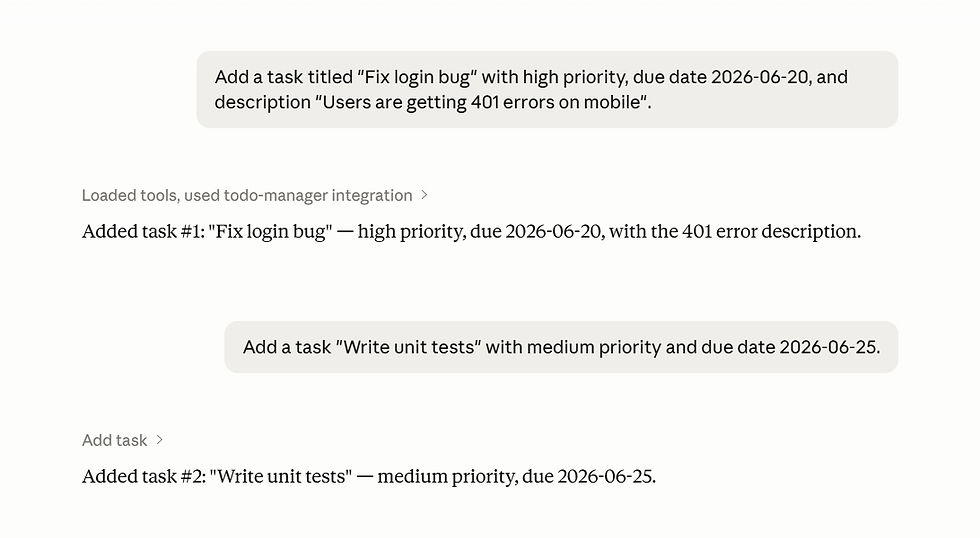
Creates a new task and appends it to the list. title is the only required field — description, priority, and due_date all have sensible defaults so Claude can omit them for simple requests. The priority is validated before writing, and an auto-incrementing ID is assigned from next_id in the store.
@mcp.tool()                    # registers this function as an MCP tool — FastMCP reads its signature and docstring to generate the JSON schema
def add_task(
    title: str,                # required — the short task title; Claude must always provide this
    description: str = "",     # optional longer description — defaults to empty string so Claude can omit it for simple tasks
    priority: str = "medium",  # optional priority level — defaults to "medium" so Claude only needs to specify when the user says high or low
    due_date: str = "",        # optional due date in YYYY-MM-DD format — empty string means no deadline
) -> str:
    """Add a new task to the to-do list.

    Args:
        title: Short title for the task.
        description: Optional longer description.
        priority: Task priority — 'high', 'medium', or 'low'. Defaults to 'medium'.
        due_date: Optional due date in YYYY-MM-DD format (e.g. '2025-07-01').
    """
    priority = priority.lower()  # normalise input — "High" and "HIGH" are treated the same as "high"
    if priority not in ("high", "medium", "low"):  # validate priority — reject unexpected values before writing to disk
        return "Invalid priority. Use 'high', 'medium', or 'low'."  # return the error as a string — Claude will relay this message to the user

    store = _load()           # load current state from disk — always load fresh to avoid overwriting concurrent changes
    task = {
        "id":           store["next_id"],               # auto-incrementing integer ID — unique and never reused
        "title":        title.strip(),                  # .strip() removes accidental leading/trailing spaces from Claude's input
        "description":  description.strip(),            # strip for consistency even though description is optional
        "priority":     priority,                       # already normalised to lowercase above
        "due_date":     due_date.strip(),               # strip whitespace — YYYY-MM-DD comparisons are sensitive to spaces
        "status":       "pending",                      # all new tasks start as pending — only complete_task can change this
        "created_at":   datetime.now().strftime("%Y-%m-%d %H:%M"),  # human-readable timestamp — stored as string, not datetime object, for easy JSON serialisation
        "completed_at": None,                           # None until the task is marked complete — _fmt checks for None before displaying this field
    }
    store["tasks"].append(task)  # add the new task to the in-memory list
    store["next_id"] += 1        # increment the counter so the next task gets a unique ID
    _save(store)                 # write the updated state back to todos.json
    return f"Task #{task['id']} added.\n\n{_fmt(task)}"  # return a confirmation with the formatted task so Claude can confirm details to the user
Tool 2 — list_tasks
Returns all tasks or a filtered subset. The filter parameter accepts six values: all, pending, completed, high, medium, or low. Status filters and priority filters are handled in the same parameter so Claude only needs one argument to answer questions like “show me high-priority tasks” or “what’s still pending”.
@mcp.tool()
def list_tasks(filter: str = "all") -> str:
    """List tasks from the to-do list.

    Args:
        filter: Which tasks to show.
                'all'       — every task
                'pending'   — only incomplete tasks
                'completed' — only completed tasks
                'high'      — only high-priority tasks
                'medium'    — only medium-priority tasks
                'low'       — only low-priority tasks
    """
    store  = _load()        # load from disk — always fresh so Claude sees changes made in previous tool calls
    tasks  = store["tasks"] # the full list of task dicts
    f      = filter.lower() # normalise — "Pending" and "PENDING" both work

    if f == "all":
        filtered = tasks                                              # all tasks — no filter applied
    elif f == "pending":
        filtered = [t for t in tasks if t["status"] == "pending"]    # only tasks not yet completed
    elif f == "completed":
        filtered = [t for t in tasks if t["status"] == "completed"]  # only tasks marked done
    elif f in ("high", "medium", "low"):
        filtered = [t for t in tasks if t["priority"] == f]          # filter by priority level across all statuses
    else:
        return "Invalid filter. Use: all, pending, completed, high, medium, or low."  # unknown filter — tell Claude the valid options

    if not filtered:
        return f"No tasks found for filter '{f}'."  # empty result — clearer than returning an empty string

    header = f"── {f.title()} Tasks ({len(filtered)}) ──\n\n"  # header line shows the active filter and count — helps Claude summarise
    return header + "\n".join(_fmt(t) for t in filtered)        # join all formatted task strings with a blank line between each
Tool 3 — get_task
Fetches and displays the full details of one specific task by its numeric ID. Useful when the user says “tell me more about task #3” or wants to check the description and due date of a particular item without listing everything.
@mcp.tool()
def get_task(task_id: int) -> str:
    """Get full details of a specific task by its ID.

    Args:
        task_id: The numeric ID of the task (shown as #ID in listings).
    """
    store = _load()                                                        # load fresh from disk
    task  = next((t for t in store["tasks"] if t["id"] == task_id), None) # find the first task with a matching ID — next() returns None if not found
    if not task:
        return f"No task found with ID #{task_id}."  # clear error — Claude will relay this to the user
    return _fmt(task)  # return the full formatted task details
Tool 4 — complete_task
Marks a pending task as done and records the completion timestamp. It includes an idempotency guard — if the task is already completed, it returns a clear message instead of overwriting the original completed_at time with a newer one.
@mcp.tool()
def complete_task(task_id: int) -> str:
    """Mark a task as completed.

    Args:
        task_id: The numeric ID of the task to complete.
    """
    store = _load()
    task  = next((t for t in store["tasks"] if t["id"] == task_id), None)  # find the task by ID
    if not task:
        return f"No task found with ID #{task_id}."       # task does not exist
    if task["status"] == "completed":
        return f"Task #{task_id} is already completed."   # idempotency guard — completing an already-done task is a no-op with a clear message

    task["status"]       = "completed"                                  # change status from "pending" to "completed"
    task["completed_at"] = datetime.now().strftime("%Y-%m-%d %H:%M")   # record when the task was finished — used in get_summary's overdue check and displayed by _fmt
    _save(store)                                                         # persist the status change to disk
    return f"Task #{task_id} marked as completed.\n\n{_fmt(task)}"      # confirm with the updated task display
Tool 5 — update_task
Edits one or more fields of an existing task without touching the rest. All fields except task_id default to an empty string — a field is only updated if a non-empty value is passed. This means Claude can change just the priority, or just the due date, without needing to resend the title and description.
@mcp.tool()
def update_task(
    task_id: int,        # required — identifies which task to modify
    title: str = "",     # optional — pass a new value to change; leave empty to keep the current value
    description: str = "",
    priority: str = "",
    due_date: str = "",
) -> str:
    """Update one or more fields of an existing task. Only pass the fields you want to change.

    Args:
        task_id:     The numeric ID of the task to update.
        title:       New title (leave blank to keep current).
        description: New description (leave blank to keep current).
        priority:    New priority — 'high', 'medium', or 'low' (leave blank to keep current).
        due_date:    New due date in YYYY-MM-DD format (leave blank to keep current).
    """
    store = _load()
    task  = next((t for t in store["tasks"] if t["id"] == task_id), None)  # find the task
    if not task:
        return f"No task found with ID #{task_id}."

    if title:                       # only update if a non-empty value was provided — empty string means "keep current"
        task["title"] = title.strip()
    if description:
        task["description"] = description.strip()
    if priority:
        priority = priority.lower()
        if priority not in ("high", "medium", "low"):  # validate only when a value is provided
            return "Invalid priority. Use 'high', 'medium', or 'low'."
        task["priority"] = priority
    if due_date:
        task["due_date"] = due_date.strip()

    _save(store)  # write only if at least one field was updated — load+save even if nothing changed is safe but wastes a disk write
    return f"Task #{task_id} updated.\n\n{_fmt(task)}"  # show the updated task so Claude can confirm the changes
Tool 6 — delete_task
Permanently removes a single task by ID. The task is looked up before deletion so its title can be included in the confirmation message — this helps the user verify that the correct task was removed and not just a number.
@mcp.tool()
def delete_task(task_id: int) -> str:
    """Permanently delete a task by its ID.

    Args:
        task_id: The numeric ID of the task to delete.
    """
    store = _load()
    task  = next((t for t in store["tasks"] if t["id"] == task_id), None)  # find the task before deleting — needed for the confirmation message
    if not task:
        return f"No task found with ID #{task_id}."

    store["tasks"] = [t for t in store["tasks"] if t["id"] != task_id]  # rebuild the list without the deleted task — list comprehension is safer than pop() with an index
    _save(store)
    return f"Task #{task_id} ('{task['title']}') deleted."  # include the title in the confirmation — helps the user verify the right task was removed
Tool 7 — clear_completed
Bulk-removes all completed tasks in one call — useful for keeping the list clean after a productive session. It counts how many tasks existed before and after filtering so it can report exactly how many were removed and how many remain.
@mcp.tool()
def clear_completed() -> str:
    """Delete all completed tasks from the list."""
    store     = _load()
    before    = len(store["tasks"])                                             # count before filtering — used to calculate how many were removed
    store["tasks"] = [t for t in store["tasks"] if t["status"] != "completed"] # keep only pending tasks — all completed tasks are dropped
    removed   = before - len(store["tasks"])                                    # difference tells us how many were actually deleted
    _save(store)
    if removed == 0:
        return "No completed tasks to clear."               # nothing to delete — tell the user rather than silently doing nothing
    return f"Cleared {removed} completed task(s). {len(store['tasks'])} task(s) remaining."  # summary of what was removed and what stays
Tool 8 — get_summary
Produces a high-level overview of the entire task list: total count, pending vs completed, pending tasks broken down by priority, and a list of overdue items. The overdue check compares each task’s due_date string against today’s date — this works reliably because YYYY-MM-DD strings sort lexicographically in the same order as actual dates.
@mcp.tool()
def get_summary() -> str:
    """Get a summary of all tasks — counts by status and priority."""
    store  = _load()
    tasks  = store["tasks"]

    if not tasks:
        return "No tasks in the list yet."  # early return — no point computing counts on an empty list

    total     = len(tasks)                                                               # total number of tasks across all statuses
    pending   = sum(1 for t in tasks if t["status"] == "pending")                       # count of incomplete tasks
    completed = sum(1 for t in tasks if t["status"] == "completed")                     # count of finished tasks
    high      = sum(1 for t in tasks if t["priority"] == "high"   and t["status"] == "pending")  # high-priority tasks still needing attention
    medium    = sum(1 for t in tasks if t["priority"] == "medium" and t["status"] == "pending")  # medium-priority pending tasks
    low       = sum(1 for t in tasks if t["priority"] == "low"    and t["status"] == "pending")  # low-priority pending tasks

    overdue = []                                                # collect overdue tasks separately so they can be listed by name
    today   = datetime.now().strftime("%Y-%m-%d")              # today's date as a YYYY-MM-DD string — used for string comparison with due_date
    for t in tasks:
        if t["status"] == "pending" and t.get("due_date") and t["due_date"] < today:  # string comparison works because YYYY-MM-DD is lexicographically ordered
            overdue.append(f"  • #{t['id']} {t['title']} (due {t['due_date']})")      # bullet line for each overdue task — shown under the summary counts

    lines = [
        f"── To-Do Summary ──",
        f"",
        f"  Total      : {total}",      # all tasks ever created and not yet deleted
        f"  Pending    : {pending}",    # tasks still to be done
        f"  Completed  : {completed}",  # tasks finished
        f"",
        f"  Pending by priority:",
        f"    🔴 High   : {high}",    # urgent pending tasks
        f"    🟡 Medium : {medium}",  # normal pending tasks
        f"    🟢 Low    : {low}",     # low-urgency pending tasks
    ]

    if overdue:
        lines += ["", "  ⚠️  Overdue tasks:"] + overdue  # only added when there are overdue items — keeps the summary clean otherwise

    return "\n".join(lines)  # join all lines into a single string for MCP to return to Claude
Entry Point
if __name__ == "__main__":
    mcp.run()  # starts the MCP server on stdio transport — Claude Desktop connects to it as a subprocess via the config JSON
mcp.run() with no arguments defaults to stdio transport — the server reads MCP messages from stdin and writes responses to stdout. Claude Desktop manages the process lifecycle: it starts the server when needed and communicates through the process’s stdio pipes. No network port, no external server to manage.
Why We Used Synchronous Functions (Not Async)
If you look at the server, you will notice every tool is a plain def — none of them use async def. This is intentional.
What Async Is
async/await is Python’s way of writing non-blocking code. When an async function hits an await, it pauses and hands control back to the event loop, which can run other tasks in the meantime. This is useful when you are waiting on something slow:
# Async makes sense here — waiting on a network response
async def fetch_from_api(url: str) -> dict:
    async with httpx.AsyncClient() as client:
        response = await client.get(url)   # yields control while waiting for the HTTP response
        return response.json()
Without await, the whole program would freeze during that network call. With await, other work can proceed while the request is in flight.
Common cases where async helps: - HTTP requests — calling an external API - Database queries — waiting for a query result - File I/O over a network — reading from a remote drive
Why We Did Not Need Async Here
Our tools do one thing: read and write a small JSON file on the local disk.
def _load() -> dict:
    return json.loads(TODOS_FILE.read_text(encoding="utf-8"))  # reads a tiny JSON file from local disk — microseconds

def _save(store: dict) -> None:
    TODOS_FILE.write_text(json.dumps(store, indent=2), encoding="utf-8")  # writes a tiny JSON file — equally fast
A local JSON file with a handful of tasks reads and writes in microseconds — orders of magnitude faster than any network call. There is no waiting involved. Adding async here would not make the code faster; it would just add complexity with no benefit.
FastMCP Handles Sync Tools Safely
FastMCP automatically runs synchronous tools in a thread pool executor, so they do not block the MCP event loop even when written as plain functions. You get the same safety guarantee as async without writing it.
The rule is simple: use async when you are waiting on something slow. Use sync when you are not. For a local file store, sync is the right call — it is simpler to write, simpler to read, and equally correct.
If you later add a feature that syncs tasks to an external service (Notion, Google Tasks, a REST API), that is when you would switch those tools to async def.
Running the Server
After adding the server to claude_desktop_config.json and restarting Claude Desktop, you can talk to Claude naturally:
Add a task "Prepare quarterly report" with high priority, due 2026-06-20.

Show me all high-priority tasks.

Mark task #3 as completed.

Give me a summary of all my tasks.
Claude will call the appropriate tools automatically, confirm actions, and display results in a readable format.
Sample Output




Who Can Benefit
Students learning Python and MCP who want a real working project to study and extend
Developers who want a practical first MCP server to understand how the protocol works
Claude Desktop users who want a persistent task manager integrated directly into their AI workflow
Teams evaluating MCP as a platform for connecting Claude to internal tools and data sources
Anyone building AI productivity tools who wants a reference implementation with file-based persistence
How Codersarts Can Help
MCP opens up a large space of possibilities — connecting Claude to databases, internal APIs, file systems, and custom business logic. If you want to build a production MCP server for your use case (task management, document retrieval, CRM integration, or something entirely custom), Codersarts provides end-to-end development and mentorship.
Custom MCP server development tailored to your tools and workflows
FastMCP and MCP SDK training with hands-on project work
One-on-one mentorship and code reviews
Get in touch: codersarts.com | contact@codersarts.com
Continue Your AI Learning Journey with Codersarts
If you enjoyed this article and would like to discover more about modern AI applications, production-ready LLM systems, and real-world RAG and MCP implementations, be sure to explore these other blogs from Codersarts:
Building an AI Travel Planner with Ollama and MCP – Part 1
https://www.codersarts.com/post/building-ai-travel-planner-with-ollama-and-mcp-part-1
Building Your Own Database MCP Server – Part 1
https://www.codersarts.com/post/building-your-own-database-mcp-server-part-1
25 Hands-On MCP Projects: From Beginner to Enterprise-Level Mastery
https://www.codersarts.com/post/25-hands-on-mcp-projects-from-beginner-to-enterprise-level-mastery
Build an MCP Server from Scratch with Python: Complete Source Code + 1:1 Mentorship (2026)



Comments